JPG to Text: How to Convert JPG Images to Editable Text
JPG is the most common image format in the world, and it is also the most common format people need to convert to text. Every phone camera saves photos as JPG by default. Every scan emailed as an attachment is usually a JPG. Every picture of a whiteboard, a noticeboard, a book page, or a receipt that someone sends you is probably a JPG. Sooner or later you need the words inside one as text you can edit — and retyping them is the slowest way to get there.
This guide explains how to convert a JPG to text, what makes JPG files easy or hard for OCR to read, and how to get the best result. The steps take a minute: upload the JPG to the image to text converter on the home page and download the text. If you want the general method first, see how to convert an image to text; if you work with screenshots, the PNG to text guide covers the format that reads best.
Why JPG Is the Default — and What That Costs
JPG became the default photo format because it compresses well. A photo that would be 10 megabytes as a PNG is often under 2 megabytes as a JPG, and it still looks the same to the human eye. That compression is lossy: the file throws away fine detail that the eye does not notice, and keeps the broad shapes and colors. For photographs of people and landscapes, that trade is invisible. For text, it is not quite invisible, and the difference matters.
Text is made of sharp edges: the thin stroke of a lowercase "l", the dot of an "i", the serif on a "T". JPG compression softens those edges slightly and adds faint halos and blocky artifacts around them, especially at high compression. At a camera's default quality setting, the softening is small and OCR barely notices it. At the lowest quality setting — the kind of compression a messaging app applies when it shrinks a photo before sending — the letters blur, and accuracy drops. This is why a JPG you took yourself usually reads well, while a JPG that has been forwarded three times through a chat app reads worse: each save re-compresses the image and loses a little more detail.
There is a practical rule here. If you have the original photo, use the original. If the only copy you have is the one from the chat app, it will probably still work for large, clear text, but expect more errors on small print. And if you are saving a scan yourself, save it as PNG when you have the choice — PNG keeps every pixel exactly, and the PNG to text guide explains why that matters for small text. But do not convert a JPG to PNG just to upload it: converting formats cannot put back detail the JPG already threw away, and the OCR result will be the same.
How to Convert a JPG to Text
The process has four steps, and the whole thing takes under a minute for a single image.
First, check the image. Open it and look at it the way the software will: is the text large enough to read comfortably at full size? Is the page straight, or tilted? Is there a shadow across part of it? If the photo is crooked, rotate it in your phone's photo app before uploading — most OCR engines assume text runs horizontally, and a tilted page reads badly. If the text is small, do not enlarge the image in an editor and hope for the best; enlargement does not add detail. Instead, re-photograph the page closer up, or scan it at a higher resolution.
Second, upload the JPG. On SnapText, drag it onto the home page or click to choose it. Guests can convert without an account; a free account gives you 10 pages a month and a history of your conversions. The file size limit on the free plan is 10 MB, which covers almost any phone photo; paid plans accept up to 25 or 50 MB. If your JPG is larger than the limit, it is almost certainly a very high-resolution photo, and saving it at slightly lower quality will bring it under the limit without hurting OCR at all.
Third, pick the language and the export format. English is the default. If the text is in Spanish, French, German, or another supported language, select it — the wrong language model is one of the commonest reasons for a bad result, and it costs nothing to set correctly. For the export format, TXT is enough if you only need to copy the text somewhere; choose DOCX if you want an editable Word document, or searchable PDF if you are archiving the page. Paid plans include all three, plus JSON with word positions and confidence. The pricing page lists the limits for each plan.
Fourth, check the result before you use it. Every page comes with a mean confidence score and a list of low-confidence words. Read the flagged words against the original image and fix them, and pay special attention to numbers — a misread digit in a total or a date is the error with real consequences. The guide on how to improve OCR accuracy explains the proofreading routine in full.
What Reads Well in JPG, and What Does Not
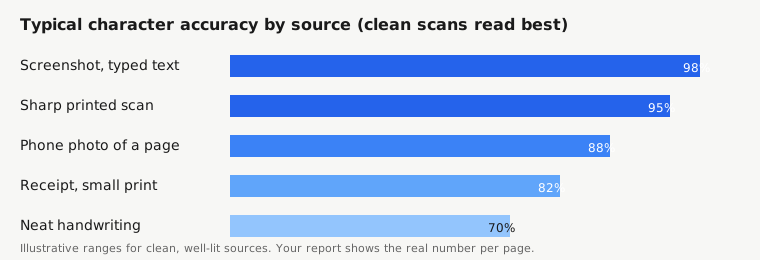
Not all JPGs are equal, and it helps to know where yours falls before you judge the result.
| Source of the JPG | Typical accuracy | What usually goes wrong |
|---|---|---|
| Phone photo of a printed page, good light | 90–97% of characters | Slight blur at the edges; curved pages near the spine |
| Scan saved as JPG at high quality | 97–99% of characters | Almost nothing; this is the best case for JPG |
| Screenshot saved as JPG | 93–98% of characters | Compression softens small text and thin lines |
| Photo forwarded through a chat app | 75–90% of characters | Repeated re-compression; small text suffers most |
| Photo of a whiteboard | 80–92% of characters | Glare, marker strokes of uneven width, curved writing |
| Old faded print photographed in dim light | 60–85% of characters | Low contrast; the engine cannot tell letters from background |
Two patterns are worth remembering. The first is that large text forgives compression. A headline at 48 points will survive three rounds of chat-app compression, because the letters are hundreds of pixels tall and the artifacts are small by comparison. Footnotes at 8 points will not, because the letters are barely a dozen pixels tall and the artifacts are as big as the strokes. If only the small print reads badly, the problem is the image, not the tool.
The second pattern is that color does not matter much, but contrast does. A black-on-white page reads best. White text on a dark background reads almost as well. Grey text on a pale background — the classic faded receipt, or a photo taken in dim light — reads worst, because the software cannot decide where each letter ends. If you can, increase the contrast before uploading: most phone photo apps have a one-tap "enhance" or "document" mode that does exactly this.
JPG Photos of Documents vs Scans
A common question is whether a phone photo of a page is good enough, or whether you need a scanner. The honest answer is that a careful phone photo is good enough for most purposes, and a scanner is better for the cases where accuracy matters most.
A scanner wins on three things: even lighting, flat pages, and consistent resolution. There are no shadows, no perspective distortion, and no curved pages near a book spine. For a contract, a certificate, or an archive you will keep for years, scan it. For a notice on a wall, a whiteboard at the end of a meeting, or a page from a book you do not own, a phone photo is the only option, and it is usually fine.
If you are photographing, four habits make the difference. Fill the frame with the page, so the text is as large as possible. Hold the phone parallel to the page, not at an angle — perspective distortion is the hardest defect for OCR to cope with. Use even light: stand where your shadow does not fall across the page, and avoid the phone's flash, which creates a bright spot in the middle and dark corners. And take the photo with the phone's own camera app, not inside a chat app, so the image is saved at full quality instead of being compressed before you even start.
Batch Converting JPGs
One JPG is a minute's work. Fifty JPGs — a folder of scanned letters, a semester of lecture photos, a drawer of receipts — is a different job, and doing it one file at a time is a waste of an afternoon. SnapText's Starter plan converts 50 images in one batch, and Pro converts 200. Upload the whole folder, let it run, and download one ZIP with all the text files and a CSV report.
Batch conversion has one rule worth following: check the report, not every file. The CSV lists each image with its mean confidence and status. Sort by confidence, and proofread the lowest-scoring pages first — those are the ones with errors. The pages above 90 percent usually need only a skim. This triage is the whole point of a confidence report: it tells you where to spend your proofreading time instead of making you re-read everything.
There is also a quota point to know. SnapText counts one JPG as one page, and only successful conversions count. A corrupt file, or a photo with no readable text, never uses quota. If a batch is larger than your remaining monthly allowance, the upload is refused up front with a message telling you how many pages you have left, rather than processing half the batch and stopping.
Common JPG to Text Problems
A result that comes back empty usually has a simple cause. The most common is that the file is not actually a JPG: a PDF or a Word document renamed to .jpg will be rejected, because the software reads image files, not documents. Next most common is a page photographed upside down or sideways — rotate it and convert again. After that, check the size: text under about 10 pixels tall per character is below the floor for reliable recognition, and the fix is a closer photo or a higher-resolution scan, not a different tool.
Text in the wrong order is usually a layout problem. A two-column page, or a page with a sidebar, can confuse the reading order, so sentences from the left column and the right column get mixed. Cropping the image to a single column and converting each column separately is the reliable fix, and it is faster than untangling the mixed text afterwards.
A result full of strange characters — boxes, symbols, fragments of words — usually means the language is wrong. A German page read with the English model, or a Chinese page read with the English model, produces exactly this kind of output. Set the language to match the page and convert again.
The Short Version
JPG to text is a solved problem for clean, well-lit images: upload the JPG, pick the language, download the text, and proofread the flagged words. JPG compression costs a little accuracy on small text, and every re-save through a chat app costs a little more, so use the original file when you can and save scans as PNG when you have the choice. For batches, upload the whole folder at once and proofread by confidence, lowest first. And if a page comes back wrong, fix the image — straighter, brighter, closer — and convert again; that is almost always faster than fixing the text by hand.
References
- Tesseract OCR, official documentation: https://tesseract-ocr.github.io/
- Library of Congress, Digitization and OCR for historic newspapers: https://www.loc.gov/
- National Institute of Standards and Technology (NIST), document and handwriting recognition research: https://www.nist.gov/
- U.S. National Archives, Digitization programs: https://www.archives.gov/
- W3C Web Accessibility Initiative, guidance on text alternatives and document accessibility: https://www.w3.org/WAI/