Screenshot to Text: How to Copy Text From Any Screenshot
Every day, useful text gets stuck inside screenshots. An error message you need to search for. A table in a PDF that will not let you select it. A chat message you need to quote. A form on a website with no copy button. The words are on your screen, plain as day, and yet you cannot select them — so you end up retyping them by hand, introducing typos into exactly the text where typos matter most, like error codes and addresses.
Converting a screenshot to text solves this in seconds. Screenshots are, as it happens, the best possible input for OCR: perfect contrast, no blur, no camera noise, letters exactly as the font designer drew them. This guide explains how to convert screenshots to text, which screenshots read best, and how to handle the awkward cases — long pages, tiny text, and text you cannot screenshot in one go. The converter on the home page does the job in one upload; for the general method, see how to convert an image to text.
Why Screenshots Read Better Than Photos
A screenshot is not a photograph of text. It is a direct copy of the pixels the computer drew, and that makes all the difference. A photograph of a page has to survive the camera: the lens, the sensor, the lighting in the room, the angle of the phone, the shadow of your hand. Each of those steps adds noise and distortion. A screenshot skips them all. The text in a screenshot is exactly the text the program rendered, at exactly the size it rendered it, with exactly the contrast it used.
The numbers bear this out. A clean screenshot of body text typically converts at 97 to 99 percent character accuracy, which is as good as a flatbed scan and far better than a phone photo of the same page. The errors that remain are usually the characters OCR always struggles with — "1" versus lowercase "l", "0" versus "O" — rather than the blur and distortion errors that dominate photographs. And because screenshots are saved as PNG by default on Windows, macOS, and most phones, they arrive in the lossless format that preserves sharp edges best. The PNG to text guide explains why that matters for small print.
There is one condition: the text has to be big enough. A screenshot of a full desktop at 1920 by 1080 pixels renders body text at roughly 12 to 16 pixels tall, which is comfortably above the floor for reliable OCR. But a screenshot of a dense spreadsheet, a terminal window with a tiny font, or a whole web page shrunk to fit the screen can push the text down to 8 or 9 pixels, where accuracy starts to fall. The fix is to zoom in before you take the screenshot, which the next section covers.
How to Take a Screenshot That Converts Well
| System | How to capture a region | Default format |
|---|---|---|
| Windows | Win + Shift + S, then drag | PNG |
| macOS | Cmd + Shift + 4, then drag | PNG |
| iPhone | Side button + volume up | PNG |
| Android | Power + volume down | PNG |
| Linux | Shift + Print Screen (GNOME) | PNG |
On Windows, press Windows, Shift, and S to open the snipping tool, drag over the text you want, and save it. On macOS, press Command, Shift, and 4, then drag over the text. On an iPhone, press the side button and volume up together; on Android, press power and volume down together. In every case, capture only the text you need. A screenshot of the whole screen includes the taskbar, the browser toolbar, and half a dozen icons that have nothing to do with your text, and all of them can confuse the layout analysis that decides the reading order. A tight capture around the text is worth the extra second.
Before you capture, zoom the text in. In a browser, press Ctrl and plus (Command and plus on a Mac) until the text is large and comfortable. In a PDF reader, raise the zoom to 150 percent. In a code editor or terminal, increase the font size. The larger the text is in the screenshot, the more accurately it converts, and this one step is the difference between a 99 percent result and an 85 percent result on dense pages. It costs nothing and it is the single best thing you can do.
If the text runs off the bottom of the screen, take more than one screenshot and convert them as a batch. Do not try to capture a whole long page in one screenshot by zooming out — that makes the text smaller, which is exactly the wrong direction. Capture the page in overlapping sections, top to bottom, and convert the batch together. SnapText's Starter plan takes 50 images per batch, so a ten-screenshot page is one job. Keep the screenshots in order, and name them in order, so the text files come back in the right sequence.
Watch out for one more thing: dark mode. White text on a dark background converts almost as well as black on white, so dark mode is not a problem. But some applications use grey text on a dark grey background, and that low contrast does read worse. If a dark-mode screenshot converts badly, switch the application to light mode for the capture, or use your operating system's invert-colors feature, and convert again.
How to Convert a Screenshot to Text
Upload the screenshot to the converter on the home page. Guests can convert without an account; a free account gives you 10 pages a month and keeps a history of your conversions. Pick the language — English by default — and the export format. For a screenshot you usually want TXT, because you are going to paste the text somewhere else. If you are archiving the screenshot, choose searchable PDF as well: it keeps the original image and adds a text layer you can search later. Exporting both formats costs nothing extra, since SnapText counts one image as one page no matter how many formats you download.
When the result comes back, check the confidence report. A clean screenshot usually scores above 95 percent mean confidence, and the flagged words are few. Check them against the screenshot, and check every number digit by digit — error codes, version numbers, totals, and dates are the places where a single wrong character changes the meaning. If the result is wrong in a systematic way — whole lines missing, or text in the wrong order — the cause is usually a layout problem: a sidebar, a two-column page, or a dialog box overlapping the text. Crop the screenshot tighter and convert again.
The Cases Screenshots Solve Best
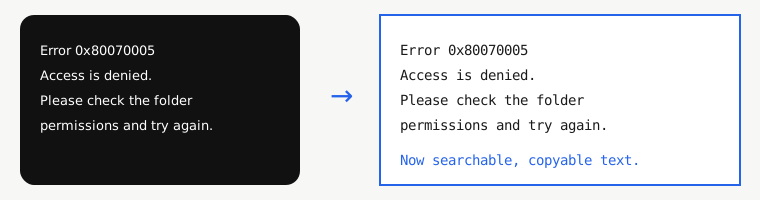
Error messages are the classic case. A program shows you an error code and a paragraph of explanation, and there is no way to select it. Retyping an error code by hand is slow and error-prone — "0x80070005" has three characters that are easy to confuse — and searching for a mistyped code returns nothing. Screenshot it, convert it, and paste the exact text into a search engine. The exact code matters, and OCR gives you the exact code.
Tables in locked PDFs are the second case. Many PDFs, especially reports and invoices, disable text selection, or the text is stored as an image inside the PDF. You cannot copy the table, but you can screenshot it. Take the screenshot at high zoom, convert it, and paste the result into a spreadsheet. The columns will not be perfectly aligned — OCR returns text, not a table structure — but the numbers will be there, and that is usually what you need. The guide on converting scanned PDF pages to text covers the case where the whole document is images.
Chat messages and social media posts are the third case. You need to quote something someone wrote, or save a conversation for your records. A screenshot plus OCR gives you the text without retyping, and it preserves the exact wording, including typos and punctuation. Just remember that quoting someone's words carries the same responsibility as retyping them: check the result, because a misread word in a quote is a misquote.
Code on screen is the fourth case, and it comes with a warning. OCR reads code reasonably well, but code is the worst kind of text for a language model to correct, because it is full of characters that look alike — "l", "1", and "|" — and words that do not exist in any dictionary. A converted snippet will usually need manual fixing: check every bracket, every semicolon, and every "0" versus "O". Do not paste converted code into a program and run it without reading it first.
Long Pages, Scrolling Screenshots, and Stitched Images
Some phones and browsers can capture a whole scrolling page in one tall screenshot. These "scrolling screenshots" or "full page" captures are convenient, but they have a weakness for OCR: the text is small, because the whole page is squeezed into one image, and the image itself can be very tall — ten thousand pixels or more. SnapText accepts images up to 10 MB on the free plan and 25 to 50 MB on paid plans, so a scrolling screenshot will usually upload fine, but the accuracy will be lower than the same page captured in sections at full size.
The better approach is to capture the page in sections at 100 percent zoom, with a little overlap between sections, and convert the batch together. Each section reads at full accuracy, and the overlap lets you spot where one section ends and the next begins. If your browser offers a "full page screenshot" feature in its developer tools, it produces the same kind of tall image as a scrolling screenshot, with the same trade-off — use it when you need the whole page as one file, and use sections when you need the text to be right.
One more practical point: if you stitch screenshots together into a single image yourself, keep the width reasonable. An image 2,000 pixels wide and 20,000 pixels tall is legal, but some OCR engines struggle with extreme aspect ratios, and the reading order can go wrong. Sections are safer than stitches.
Common Problems and Fixes
A screenshot that converts to empty text usually has one of three causes. The first is transparency: a screenshot of a window with rounded corners, or a PNG exported from a design tool, can have a transparent background with white text, which reads as white on white. Flatten the image onto a white background and convert again. The second is that the "screenshot" is actually a photo of a screen — a phone photograph of a monitor has moiré patterns, glare, and refresh lines, and it reads far worse than a real screenshot. Take a real screenshot instead. The third is that the text is an image inside the screenshot at very low resolution, such as a tiny embedded logo — there is not enough detail to read, and no tool will fix that.
Text in the wrong order is usually a layout problem. A web page with a sidebar, a two-column article, or a table with headers can confuse the reading order. The fix is to crop the screenshot to the single block of text you want, and convert the blocks one at a time if necessary. It takes an extra minute, and it is faster than untangling mixed-up sentences afterwards.
A result full of wrong characters usually means the language setting is wrong, or the text is too small. Check the language first — it is the cheapest fix — and then retake the screenshot at a higher zoom. If the text is in a decorative font, such as a script or a heavily stylized display font, expect lower accuracy: those fonts are hard for every OCR engine, and the confidence report will say so plainly.
The Short Version
Screenshots are the best input OCR can get: perfect contrast, no blur, no camera noise. Take a tight capture, zoom the text in first, and convert the screenshot on the home page. Check the flagged words and every number before you trust the result. For long pages, capture in sections rather than one tall scrolling screenshot, and convert the batch together. And when the text is an error code, a table, or a quote, the few seconds OCR takes are worth it — because the exact characters matter, and retyping them by hand is where the mistakes creep in.
References
- Tesseract OCR, official documentation: https://tesseract-ocr.github.io/
- W3C Web Accessibility Initiative, guidance on text alternatives: https://www.w3.org/WAI/
- National Institute of Standards and Technology (NIST), document recognition research: https://www.nist.gov/
- Library of Congress, Digitization and OCR: https://www.loc.gov/
- U.S. National Archives, Digitization programs: https://www.archives.gov/